您现在的位置是:网站首页> 小程序设计
微信小程序原生开发
- 小程序设计
- 2026-10-21
- 16人已阅读
微信小程序原生开发
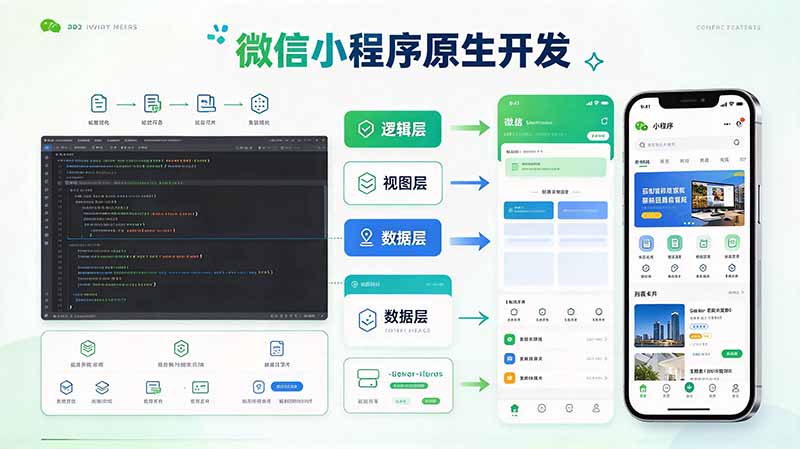
微信云开发控制面板-》微信开发者工具里

├── app.js
├── app.json
├── app.wxss
├── pages
│ │── index
│ │ ├── index.wxml
│ │ ├── index.js
│ │ ├── index.json
│ │ └── index.wxss
│ └── logs
│ ├── logs.wxml
│ └── logs.js
└── utils
app.json例子:
{
"pages": ["pages/index/index", "pages/logs/index"],
"window": {
"backgroundTextStyle": "light",
"navigationBarBackgroundColor": "#fff",
"navigationBarTitleText": "Demo",
"navigationBarTextStyle": "black"
},
"tabBar": {
"list": [
{
"pagePath": "pages/index/index",
"text": "首页"
},
{
"pagePath": "pages/logs/logs",
"text": "日志"
}
]
},
"networkTimeout": {
"request": 10000,
"downloadFile": 10000
},
"debug": true,
}
1. pages/index/index.json 【页面配置】
{
"usingComponents": {},
"navigationBarTitleText": "原生小程序示例页",
"navigationBarBackgroundColor": "#2d8cf0",
"navigationBarTextStyle": "white"
}
2. pages/index/index.wxml 【页面结构】
<!-- 数据绑定、输入、按钮、列表、条件渲染 -->
<view class="container">
<view class="title">小程序原生页面示例</view>
<!-- 双向绑定输入框 -->
<input class="input" placeholder="请输入内容" bindinput="onInputChange" value="{{inputVal}}"/>
<!-- 点击按钮 -->
<button class="btn" bindtap="handleAdd">添加到列表</button>
<!-- 条件渲染 -->
<view wx:if="{{list.length === 0}}" class="tip">列表为空,添加一条数据吧</view>
<!-- 列表循环渲染 -->
<view wx:for="{{list}}" wx:key="id" class="item">
<text>{{item.content}}</text>
<button size="mini" bindtap="handleDel" data-id="{{item.id}}">删除</button>
</view>
</view>
3. pages/index/index.wxss 【页面样式】
.container {
padding: 30rpx;
box-sizing: border-box;
}
.title {
font-size: 36rpx;
font-weight: bold;
text-align: center;
margin-bottom: 40rpx;
color: #333;
}
.input {
border: 1rpx solid #ccc;
border-radius: 8rpx;
padding: 20rpx;
margin-bottom: 20rpx;
}
.btn {
background-color: #2d8cf0;
color: #fff;
margin-bottom: 30rpx;
}
.tip {
text-align: center;
color: #999;
margin: 40rpx 0;
}
.item {
display: flex;
justify-content: space-between;
align-items: center;
padding: 24rpx;
border-bottom: 1rpx solid #eee;
}
4. pages/index/index.js 【页面逻辑】
Page({
/**
* 页面的初始数据
*/
data: {
inputVal: '',
list: []
},
// 输入框监听
onInputChange(e) {
this.setData({
inputVal: e.detail.value
})
},
// 添加
handleAdd() {
const val = this.data.inputVal.trim()
if (!val) {
wx.showToast({
title: '内容不能为空',
icon: 'none'
})
return
}
const newItem = {
id: Date.now(),
content: val
}
this.setData({
list: [...this.data.list, newItem],
inputVal: ''
})
},
// 删除
handleDel(e) {
const id = e.currentTarget.dataset.id
const list = this.data.list.filter(item => item.id !== id)
this.setData({ list })
},
/**
* 生命周期函数--监听页面加载
*/
onLoad(options) {
},
/**
* 生命周期函数--监听页面初次渲染完成
*/
onReady() {
},
/**
* 生命周期函数--监听页面显示
*/
onShow() {
},
/**
* 生命周期函数--监听页面隐藏
*/
onHide() {
},
/**
* 生命周期函数--监听页面卸载
*/
onUnload() {
},
/**
* 页面相关事件处理函数--监听用户下拉动作
*/
onPullDownRefresh() {
},
/**
* 页面上拉触底事件的处理函数
*/
onReachBottom() {
},
/**
* 用户点击右上角分享
*/
onShareAppMessage() {
}
})
上一篇:小程序研发关注问题收集